Complete Asset Maintenance
This training helps to understand how to update completed maintenance, schedule maintenance, view and change maintenance history.
First, go to the Asset List menu under the Assets module, pick a desired workspace and click on the asset that is being maintained.
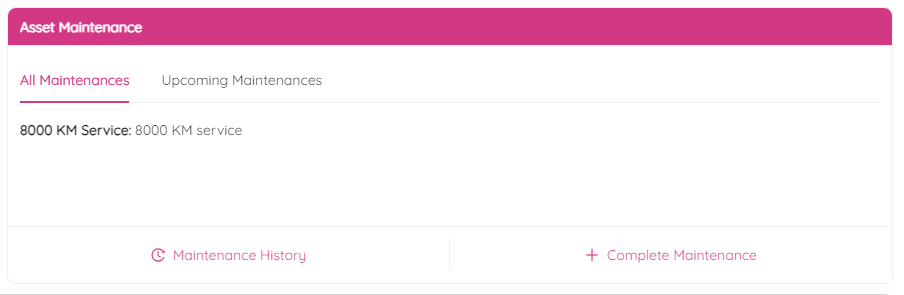
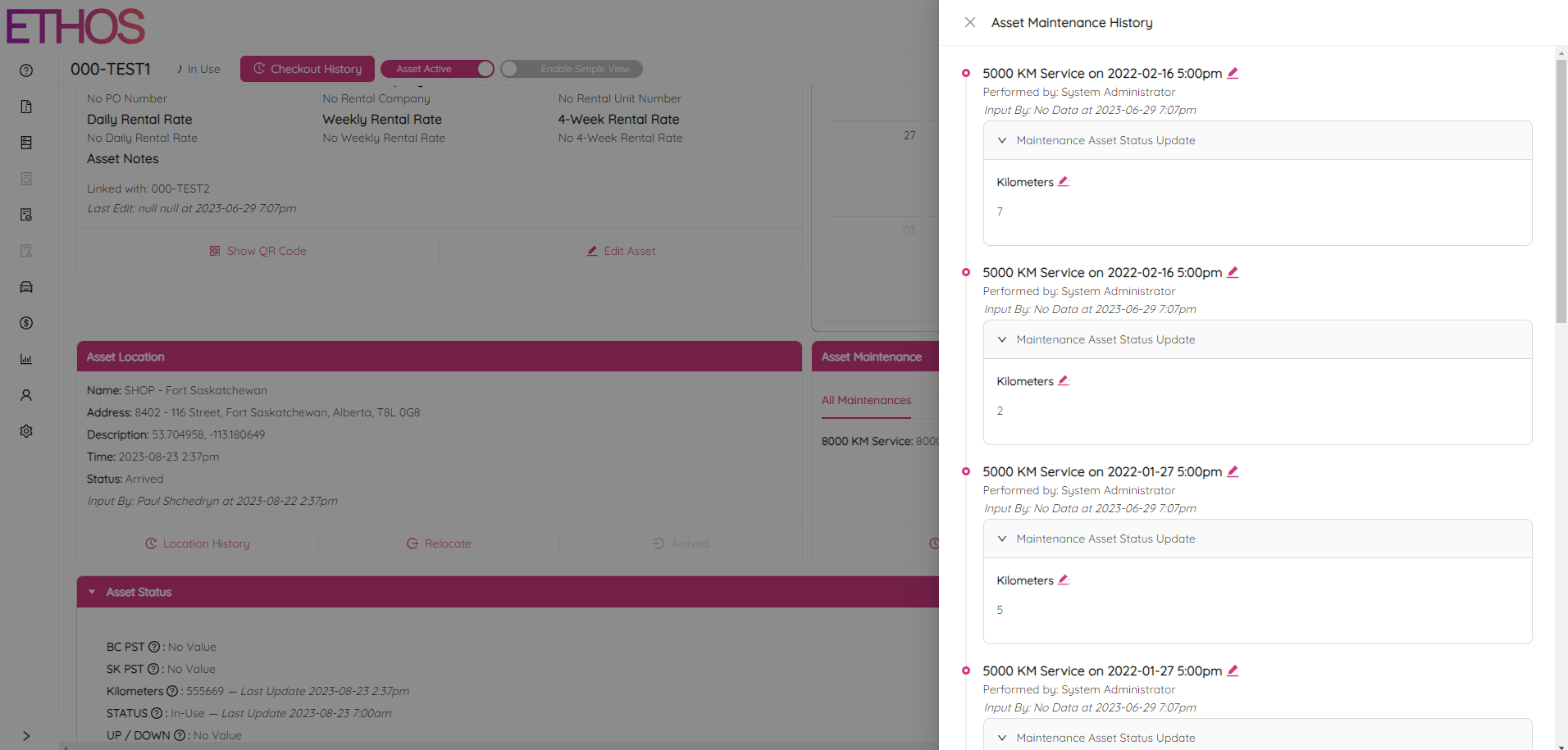
In order to view maintenance history click on the Maintenance History button. Click on the  icon to update a maintenance record including date, time, mileage and others.
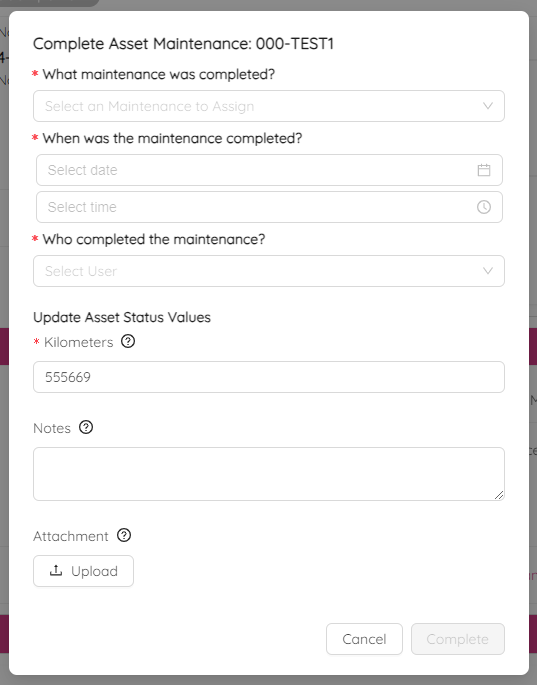
By clicking on the + Complete Maintenance button, you can add a new record about completed maintenance.
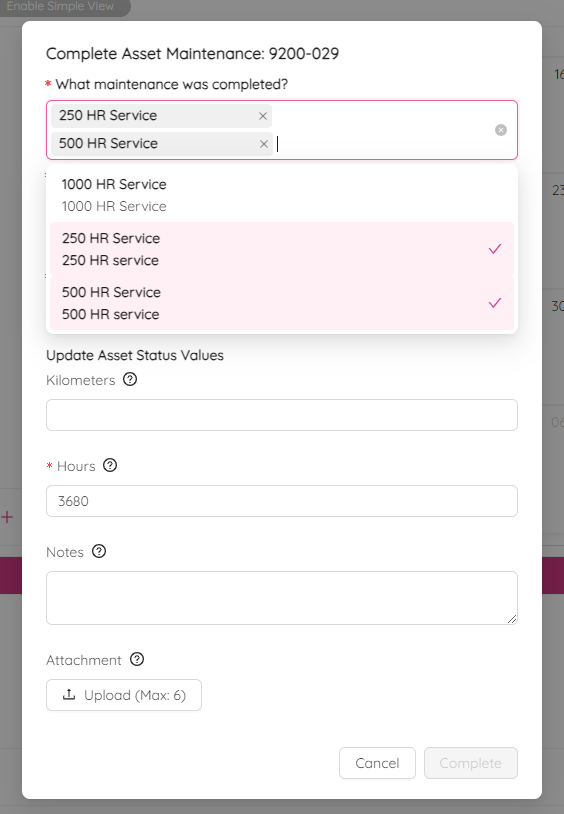
When it comes to maintenance, you have the option to select multiple services simultaneously. This is particularly useful for assets that require both 500HR and 250HR service sets. You can leverage this feature when receiving the assets from the vendor to initiate both service frequencies simultaneously. Simply select several maintenances at once by clicking on them.
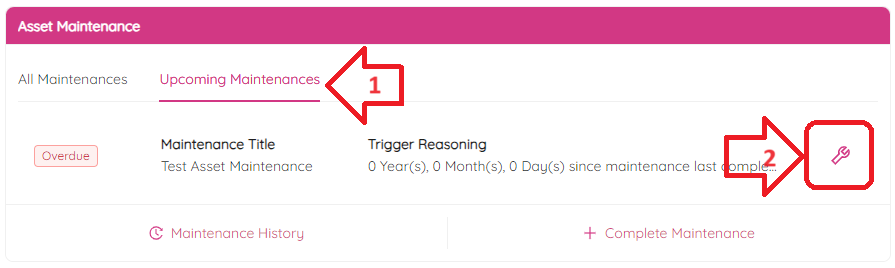
If you need to log a maintenances that are overdue, you can do it by navigating to the Upcoming Maintenances tab and clicking the wrench button located to the right of every upcoming maintenance.
If the new asset is a rental then the maintenance information will usually be the following:
- Maintenance Date = Date the asset was rented
- Maintenance Performed By = VENDOR
- Hours/Kilometers = Odometer value when rented